Claude motion graphics tutorial
Turn a brief or screenshot into a video, then shape the result through conversation.
How to make motion graphics with Claude
Claude can turn creative instructions into animation code for text, charts, shapes and images. Tellcut brings that process into a video workspace: you provide the content, guide the result by chat and download the finished video.
Follow the screenshot example below, or start with your own text-only idea. If you prefer a local coding project, jump to the Claude Code workflow.
Prepare the content you want to animate
Have your image, exact on-screen text and intended action ready. For a screenshot, name what is already visible instead of asking for an unseen screen. For a text-only video, collect your headline, main points and closing message.

Want to understand the workspace first? Open the interactive example and try its prepared edits without signing in.
Describe one clear sequence
Open a new Studio draft, attach your screenshot and describe the movement in order. Here the button press, wheel spin and final number are more useful than a request to “make it exciting.” Set the duration to 10 seconds and the format to 9:16.
“Use in Studio” carries the brief into a new draft. Add your own image or the sample above before sending it. Your first generation requires sign-in and sufficient credits; if you need a plan, Studio keeps the submitted request while you choose one.
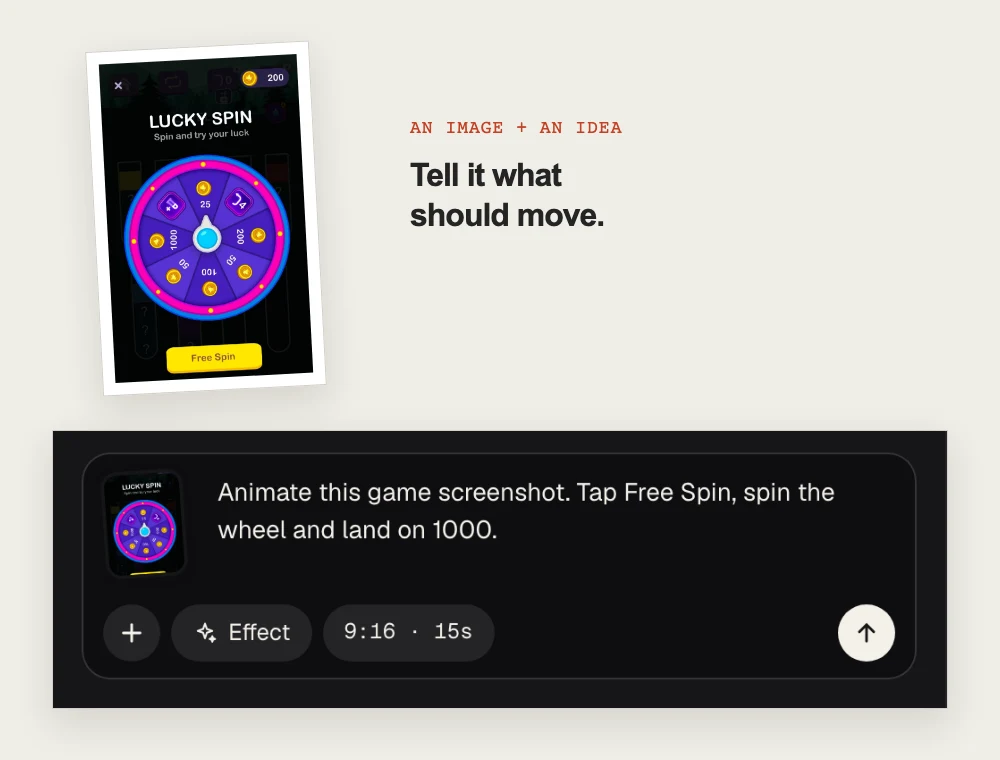
For a different video, start with a complete motion graphics prompt. Describe exact words, the main beats and a closing frame, then choose matching settings in Studio.
Review the video against your brief
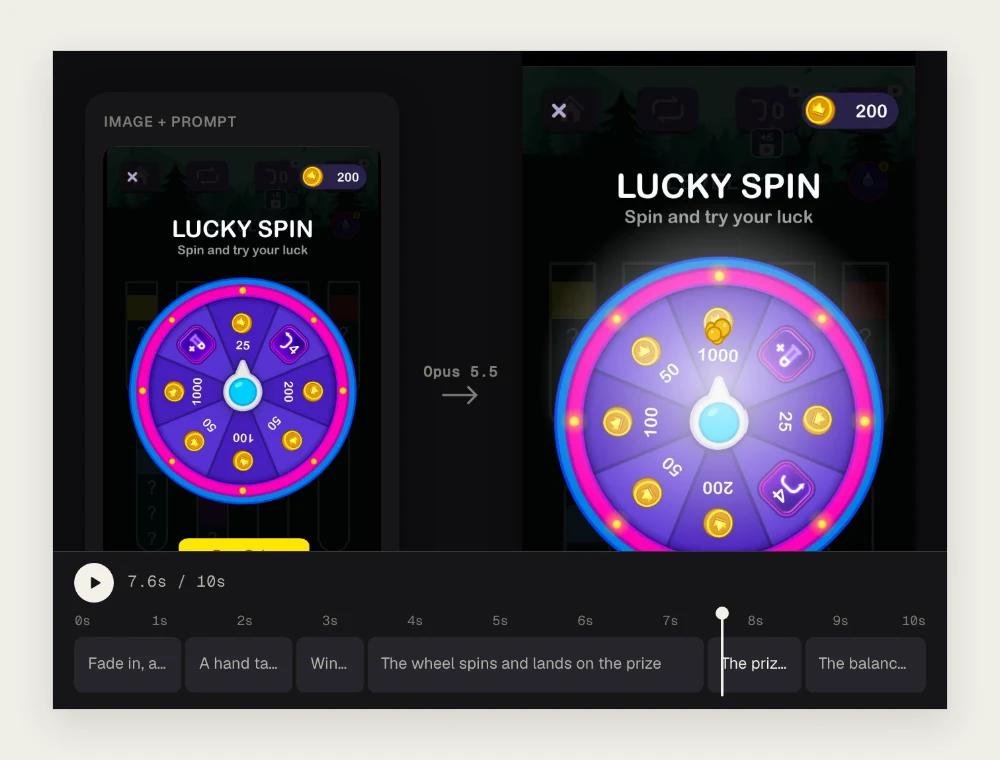
Watch the whole result, then use the timeline to inspect each beat. Check the details that matter to your message before adding more visual polish.
- Does the action happen in the order you requested?
- Are the text, brand names and numbers correct?
- Is important content inside the frame and readable?
- Does the ending stay on screen long enough?
Ask for one specific change
Name what should change and what the new result should be. Select a shot on the timeline when the request concerns one part of the video. Compare versions after each edit.
The interactive Studio example includes this prepared change. In your own video, send the edit in that video's chat rather than starting a new project. AI edits use credits.
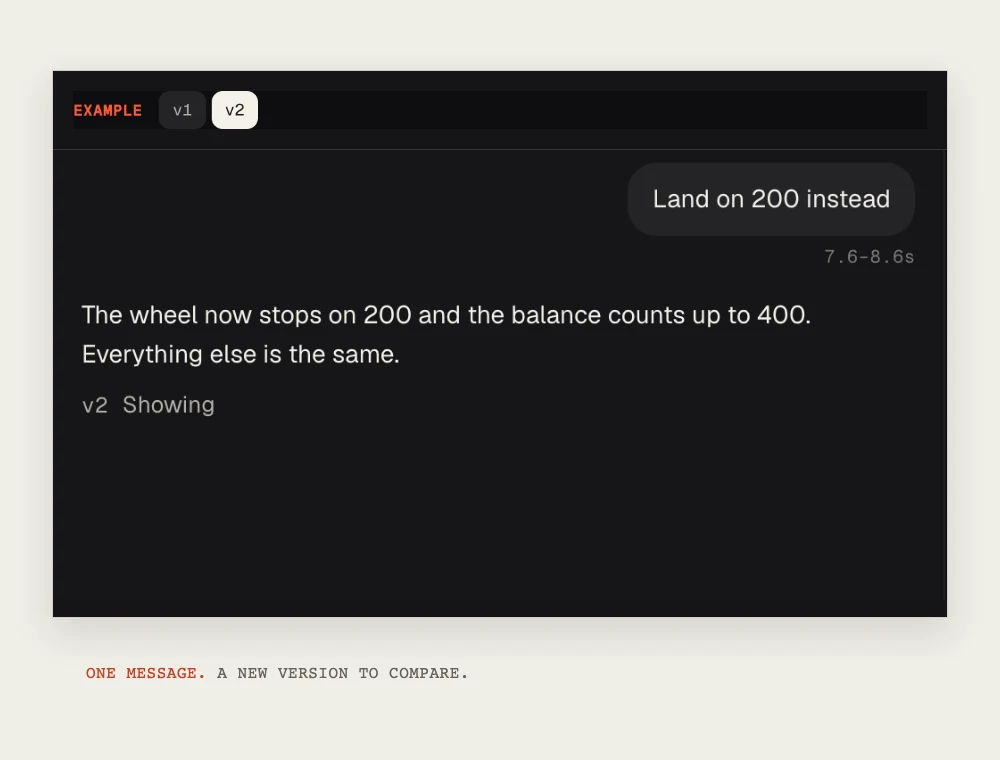
For layout or timing problems, include a time and an outcome: “At 4 seconds, keep the entire headline inside the frame.” A specific outcome is easier to review than “make it better.”
Export the version you want to share
Select your preferred version, replay it once and download the 1080p MP4 from Studio. Tellcut supports 16:9, 9:16 and 1:1 videos, with durations of 10, 15 or 30 seconds. Choose the format for where the video will appear.
Check the exported file before publishing. Tellcut's generated motion graphics are silent; add music or voiceover in your video editor if your project needs audio.
Explore the StudioClaude Code motion graphics workflow
Use this route when you want to work with the animation's source files and manage rendering yourself. You will need Node.js and Claude Code set up. Remotion provides the video project and render tools.
Create and preview a project
In a terminal, create a blank project, add the Remotion guidance and start its preview:
npx create-video --yes --blank my-video
cd my-video
npx remotion skills add
npm run dev
In another terminal, enter the same project and run claude. This follows Remotion's coding-agent setup.
Give Claude a creative brief and a video specification
A local project needs the composition name, dimensions, frame rate and duration as well as the visual direction. Adapt this starting brief to your product:
Preview, revise and render
Open the registered composition in the preview and ask Claude Code for focused revisions. For the composition named ProductLaunch in this brief, render with:
npx remotion render ProductLaunch out/product-launch.mp4Use the actual composition ID Claude registered. If your project needs an explicit entry file, pass it before that ID; the Remotion render reference explains both forms. Check the resulting MP4 and the tools' access and license terms for your use.
Claude motion graphics tutorial FAQ
01Can I make Claude motion graphics without writing code?
Yes. Tellcut lets you describe a video or add a screenshot, review the result, request changes by chat and export an MP4. The main walkthrough uses this browser workflow. The separate Claude Code section is for people who want to manage the animation source and rendering project themselves.
02Do I need a Claude subscription to use Tellcut?
A separate Claude subscription or personal API key is not required for Tellcut. You need a Tellcut account and sufficient credits to generate a video or request AI edits. The interactive example is available without signing in.
03Can I make a video from my own screenshot?
Yes. Add your screenshot to a new Studio draft and describe the visible elements and actions you want to animate. Use exact labels and values, then check the preview. Instructions that depend on hidden screens or new content need additional assets or a clearer brief.
04Can I try the process before paying?
You can explore Studio and try the interactive example's prepared changes without signing in. Creating a new video from your own text or images and requesting AI revisions require credits from a paid plan. Opening a prompt prepares a draft and does not start generation.
05How do I make motion graphics with Claude Code?
Set up Claude Code and an animation project such as Remotion. Define the creative brief along with the frame size, frame rate, duration and composition name. Preview the composition, revise the source through Claude Code, then render an MP4. You manage the local project and the tools' own access and licensing requirements.