This video couldn’t be loaded.
Create product demos and promo videos from your screenshots.
Made from screenshots
Your screenshot in. A video ready to share.
This video couldn’t be loaded.
From upload to export
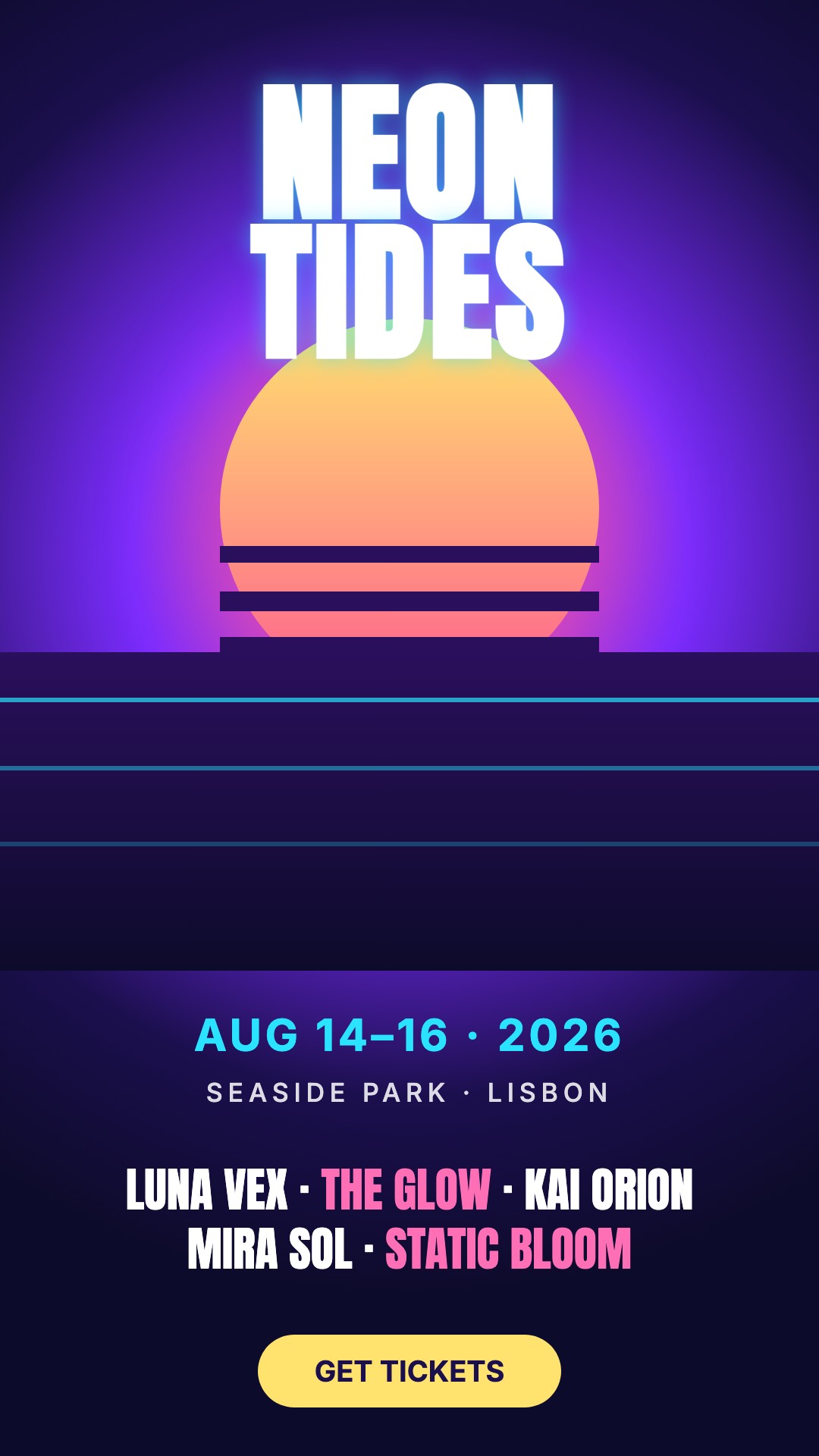
Upload a clear screenshot of your app, dashboard, game or design. Add up to four images if your story needs more than one screen.
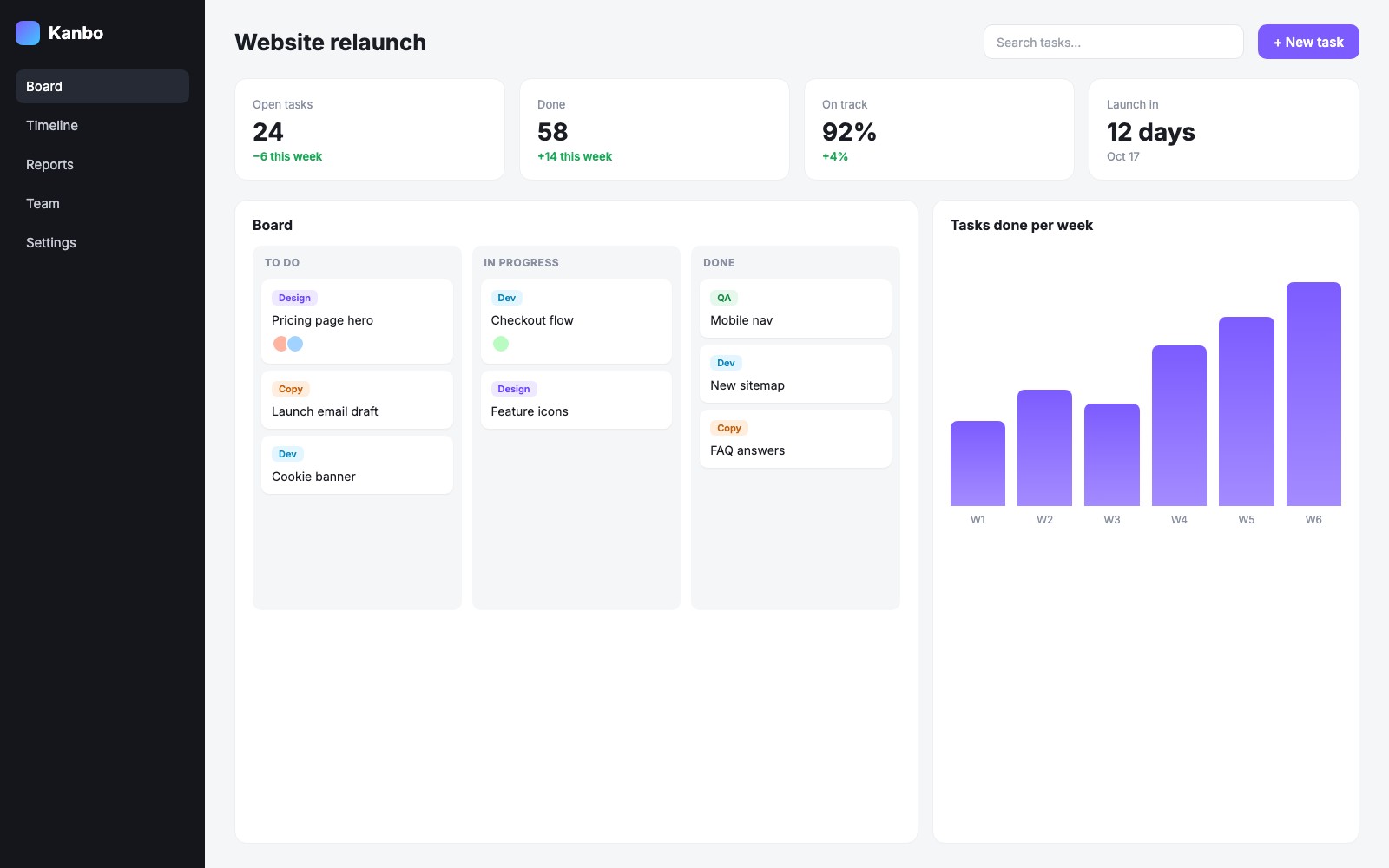
“Zoom into the chart, highlight the results, then reveal a call to action.” Describe the sequence, then choose your format and duration in Studio.
Review the animation, select a shot and ask for changes. Compare saved versions, then download your finished MP4.
Direct the animation
Decide what viewers should notice and when. Describe the motion in plain language, then adjust the details after watching the preview.
Explore animation effectsZoom, pan and highlight the part of your screen that explains the feature.
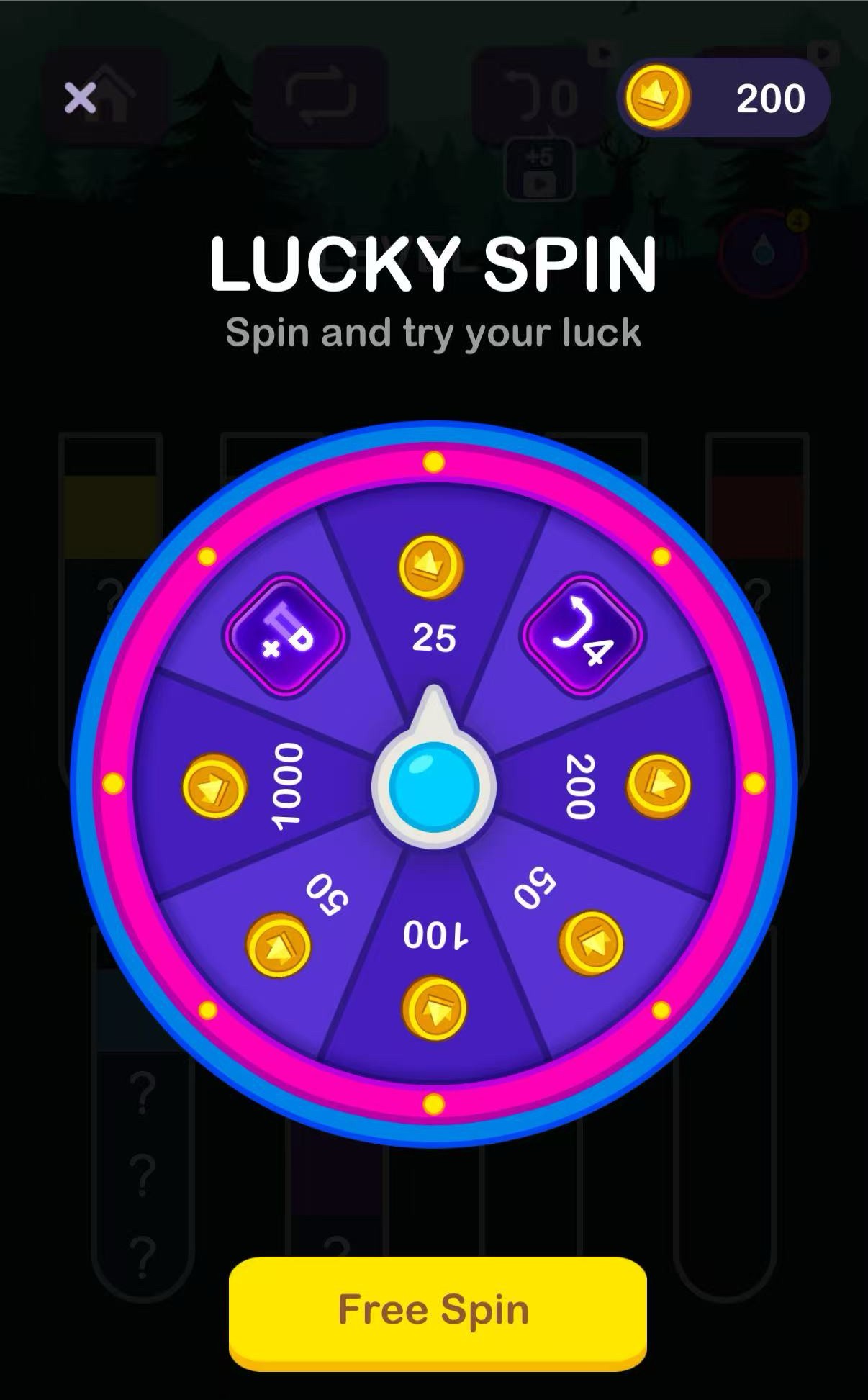
Animate a card, wheel or button using the image’s visible parts. Keep the surrounding screen still.
Introduce a feature, label the key result or finish with a call to action. Add text around your screenshot to explain what matters.
Hold longer on a detailed screen, slow down a reveal or give the final message more time to read. Ask for timing changes in chat.
Edit by chat
Ask for a different result, a closer view or a slower reveal. Compare the updated version with the original before you export.
Try a sample edit
One sentence changes where the wheel lands. Switch between the two versions to see the result.
“Land on 200 instead”
Original: the wheel lands on 1000 and the balance counts up to 1200.
Start with my screenshot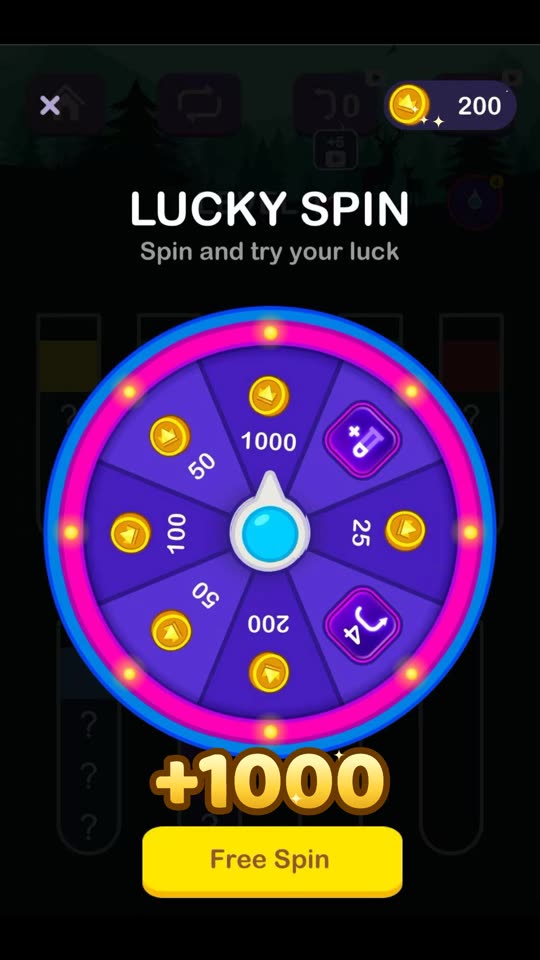 Loading preview…
Before you start
Upload your screenshot and describe the sequence you want—for example, zoom into a feature, highlight a button, and finish with a call to action. Continue in Studio to choose the aspect ratio and duration, generate the animation, and review it before exporting.
Create short product demos, feature announcements, game ads, and animated posters. App screens and dashboards work well for focused walkthroughs, while game interfaces and graphic designs can become clips built around a specific action or reveal.
Tellcut uses your uploaded image as the visual source, with movement and graphics built around it. Text inside the screenshot remains part of the image rather than editable text. Use a clear, high-resolution screenshot and review small text after zooming or resizing; uploads may be resized or compressed.
Yes. Describe the element and the movement you want, such as making a button pulse, rotating a wheel, or bringing a card forward. You can also select a region in Studio to focus your request. The available movement depends on what is visible and can be separated from the image.
Yes. Add up to four screenshots and explain their order and purpose. For a short product demo, you might introduce the dashboard, focus on a feature, and finish on a results screen. Include screenshots of any screen states you need to show.
No. You can start with screenshots you already have. Tellcut can add camera movement, highlights, and animated cues to explain a feature. To show an exact live interaction, such as typing, dragging, or a loading sequence, a screen recording may be a better source.
Yes. Ask for changes in chat, such as “hold this screen longer,” “zoom closer to the chart,” or “make the button highlight more subtle.” Review the updated preview and compare saved versions before exporting.
Generating a video from your screenshots and making AI edits require a paid Tellcut plan. Paid plans include 1080p MP4 exports without a watermark. You can explore the prepared example before choosing a plan.
Choose landscape 16:9, portrait 9:16, or square 1:1, with a duration of 10, 15, or 30 seconds. Export the finished video as a 1080p MP4. Check the crop and text size for your chosen format before exporting.
Tellcut currently creates silent motion graphics. It can move and highlight visible parts of a screenshot, but it does not generate realistic human actions or reveal hidden content. You can add voiceover or music to the exported MP4 in another editor.
Start with your screenshots. Shape the motion in Studio.