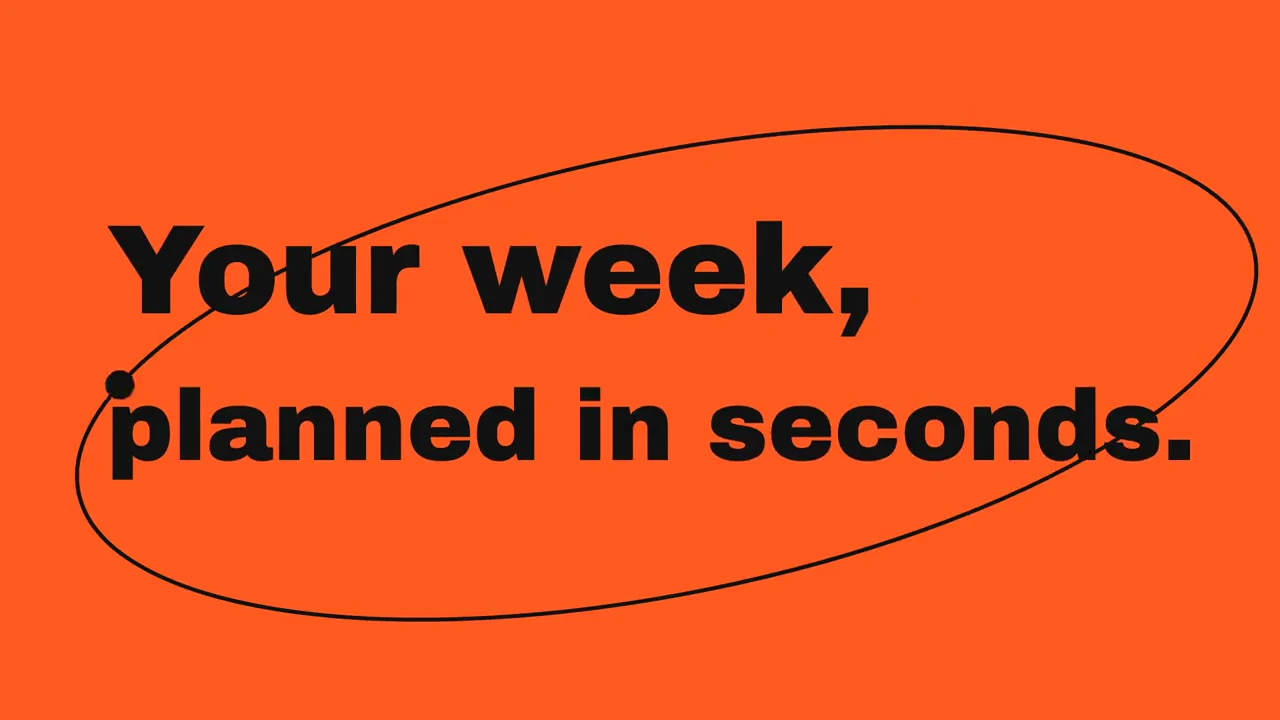
To make motion graphics with Claude, give it the content to animate, a sequence of visible actions, and an output format. Claude writes the animation code; your workspace previews it and turns it into a video file. You then revise the timing, composition, and wording through conversation.
Start with a short product launch. The Orbit example uses 15 seconds to turn a scattered task list into a weekly calendar, introduce three features, and finish on a product name and tagline. It has enough movement to explain the idea, along with a few rough edges worth fixing before delivery.
Before you start
Prepare the product name, opening line, feature names, and final message. For Orbit, a sample calendar app, the opening is “Your week, planned in seconds.” The ending is “Orbit. Get your week back.” Replace the sample name and address with your own before making a video for publication.
Choose whether you need an actual interface or a conceptual illustration. Orbit’s calendar is a drawing that explains scheduling. If you need to show how your real app works, supply screenshots and identify the controls that must stay accurate. A convincing invented dashboard can still misrepresent your product.
The steps here use Tellcut for the first version, revisions, and MP4 export. You need an account and a paid plan to generate your own video. Select a landscape 16:9 frame and 15 seconds before sending the brief. This example needs no image upload because its task cards and calendar are drawn graphics.
If you already have Claude Motion on a Team or Enterprise plan, you can use the same creative brief there. Choose Motion in the Output menu or start from a Motion template in Artifacts. Keep the sequence and copy; use that workspace’s editing and export controls.
1. Write the brief around a visible change
The central action in Orbit is easy to picture: loose task cards snap into a calendar. That gives Claude something to animate beyond text arriving on a background.
Use a brief like this:
Launch video for Orbit, a calendar app that plans your week for you.
Hook: "Your week, planned in seconds."
A messy to-do list snaps into a clean weekly calendar, then three
quick feature beats: smart time blocking, focus mode, team availability.
End card: "Orbit. Get your week back." with orbit.app.
The brief names the content and the order. Add the format and visual direction when you want tighter control:
15 seconds, 16:9, silent.
Large, left-aligned type with flat calendar graphics.
Use orange for the opening, a light calendar background, bold feature
colors, and a dark end card. Keep the task labels readable.
Show each feature through a visible action: cards filling time slots,
one task isolated for focus, and a shared gap in team schedules.
Use only the supplied product claims, feature names, and closing copy.
Explicit output requirements and constraints give Claude more useful direction than “make it look professional.” Here, a successful first draft has recognizable task cards, a calendar transformation, and the supplied copy. Decorative motion can wait.
Be precise about what the copy means. “Planned in seconds” is the sample app’s marketing line. It says nothing about how long Claude takes to generate the video. Use a claim like that for your own product only when the product supports it.
If the result still feels generic, change a concrete design choice: the grid, type size, color roles, or the way one scene becomes the next. The motion graphics prompt collection has other starting briefs when a calendar is the wrong visual metaphor for your product.
2. Give each beat a place on the timeline
Orbit fits six beats into its 15-second runtime:
| Time | Visible action | What the viewer should understand |
|---|---|---|
| 0 to 2s | The headline arrives on orange, with an orbital line around it | The promise is a planned week |
| 2 to 4.5s | Scattered task cards arrange themselves into a calendar | Tasks become a schedule |
| 4.5 to 7.5s | Colored cards fill a vertical panel | Smart time blocking |
| 7.5 to 10s | One task becomes the focus, with a timer | Focus mode |
| 10 to 12.5s | Team schedules reveal a shared gap | Team availability |
| 12.5 to 15s | The product name, tagline, and address appear | The product to remember |
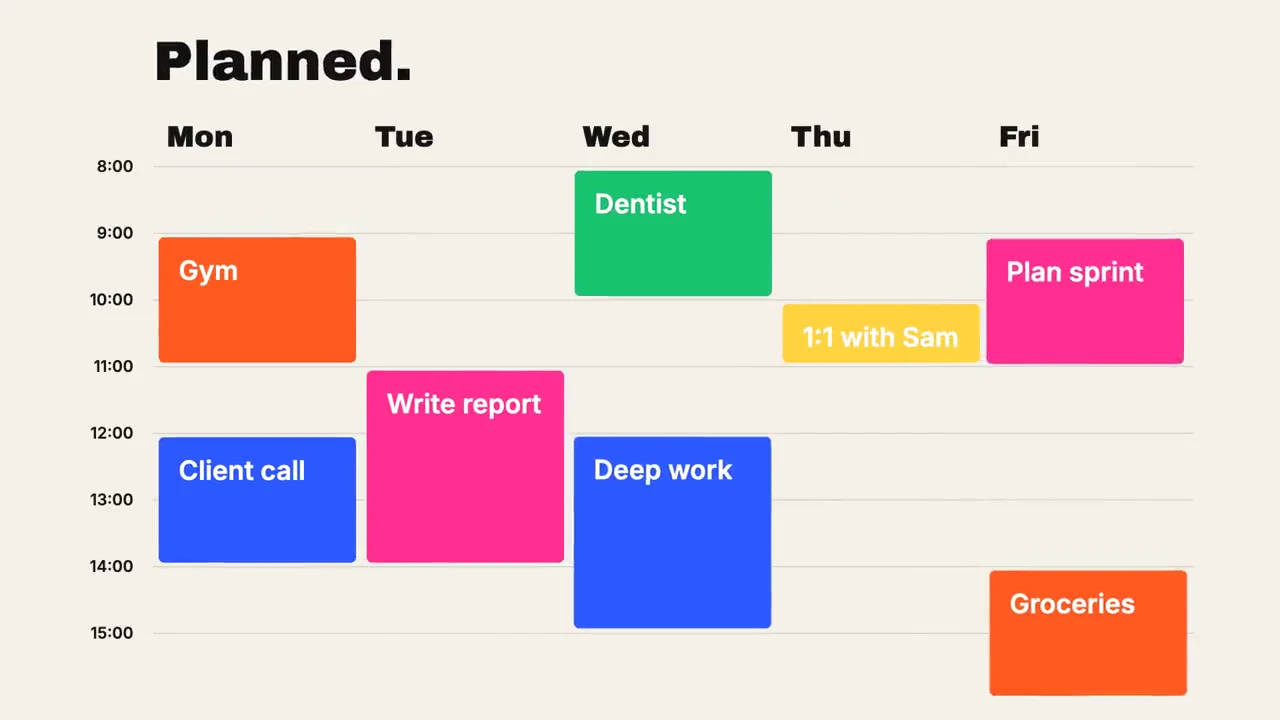 At 4.2 seconds, the calendar makes the product idea visible. The same task labels carry through the transformation.
The calendar does much of the explanatory work. A viewer can see what changed without reading a paragraph about scheduling. Keep that action recognizable when you revise the style. Replacing the task cards with unrelated shapes would weaken the explanation.
Six beats is a busy plan for 15 seconds. If your feature names are longer, keep one feature and give it more time. You can also ask Claude for a storyboard before it builds anything:
Plan this as a 15-second animation before writing the animation code.
Return a timing table with the start, end, visible action, and exact
text for each beat. Keep enough settled time to read each line.
Flag anything that will be crowded within 15 seconds.
Read the table as a schedule. The scene durations must add up to the video length, and each line needs time to arrive, remain legible, and leave.
The ending deserves particular attention. Orbit’s closing scene starts at 12.5 seconds, but the address begins its entrance at about 13.5 seconds. The full closing composition therefore gets much less than 2.5 seconds of reading time. For a longer address or call to action, start the ending earlier or simplify it.
3. Make the first version
Open a new video in Studio. Check 16:9 and 15s in the video settings, then paste the brief. Pick the palette there, or describe its color roles in the text. Keep the selected settings consistent with the written instructions.
Send the request. If Claude asks for a missing detail, answer that question without adding a new set of features. You want the first version to stay close enough to the brief that its problems are easy to identify.
Tellcut shows Planning the shots and Turning the shots into code while it works. Wait for the preview before sending another creation request. An explicit account or credits message needs to be resolved through its displayed controls; another copy of the prompt will not fix it.
Play the first version all the way through, with the sound off. Try to say what the product does in one sentence. If you remember the colors but cannot explain the calendar, return to the story before polishing transitions.
Then check the exact words. Look for an invented feature name, changed number, or extra claim. In a drawn interface, even a small label can make the product appear to offer something you did not request.
4. Pause where the layout changes
Normal-speed playback reveals pacing. Paused frames reveal collisions, awkward line breaks, and details hidden by movement. Use both.
In the Orbit feature scene, the cards arrive one after another inside a white panel. At 5.8 seconds, “Deep work” and “Client call” overlap during the entrance:
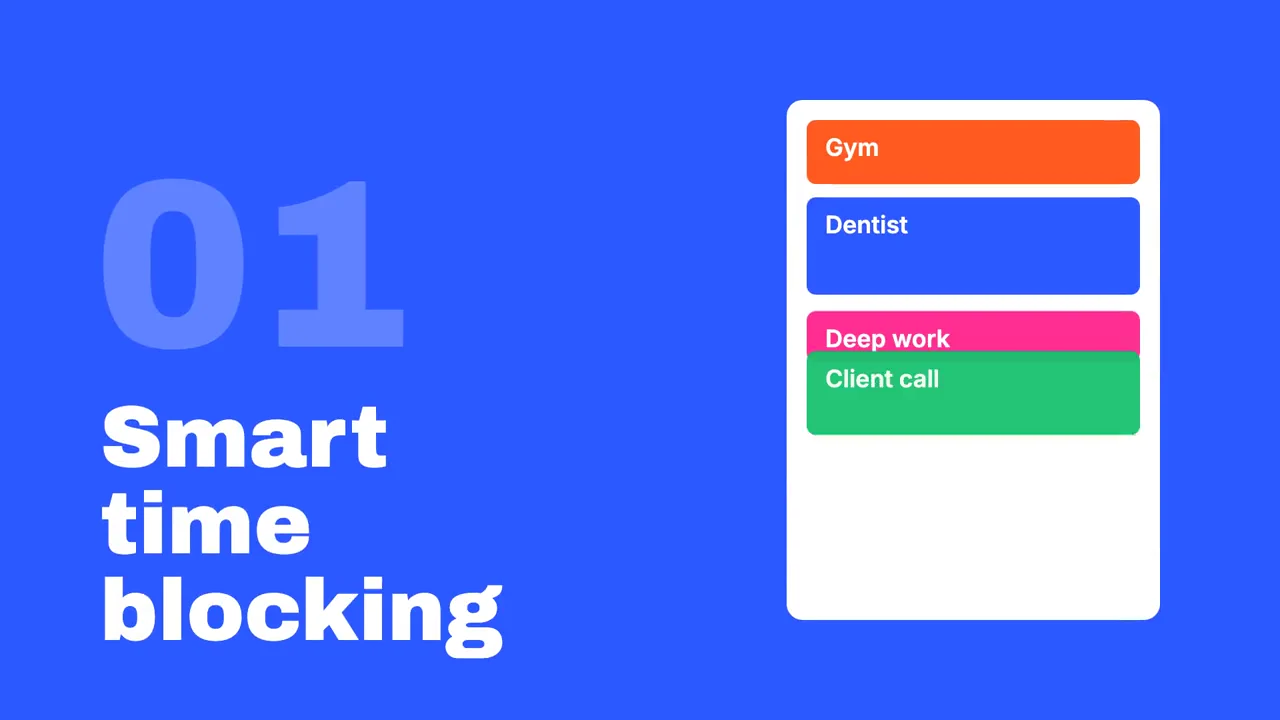 The feature is recognizable, but two cards collide during their entrances. This is a useful place for a local timing or spacing correction.
A single clean frame later in the scene would miss that collision. Scrub through the entrance as well as checking its settled state. You need enough space for the moving cards throughout their paths.
For this scene, choose which part of the design should change. You could reduce card height, increase the gap, or delay the next card until the previous one settles. Ask for one of those first:
Change only the smart time blocking scene, from 4.5 to 7.5 seconds.
Space the task cards so their text never overlaps during the entrance.
Keep every card inside the white panel. Reduce card height or stagger
entrances as needed. Preserve the feature name, colors, other scenes,
and the 15-second duration.
After the revision, play across both scene boundaries. A slower entrance can fix the overlap but leave the last card arriving just as the scene cuts away. Check the full interval you changed.
5. Make the ending readable before adding more motion
Orbit returns to the orbital line from its opening. That connects the beginning and ending, but the line crosses the closing tagline:
 The end card at 14.6 seconds. Moving the orbit away from the tagline would give the closing message more room.
The product name is large and clear. The next correction is specific: separate the decorative line from the tagline and give the complete card a longer settled interval.
Revise the ending only. Move or resize the orbital line so it stays
clear of "Get your week back." throughout the closing scene.
Show the product name, tagline, and address together by 13 seconds,
then keep the text still until the end. Start the closing scene
earlier if needed. Preserve the wording and the 15-second total.
Treat that as a new revision request. Compare its result with the current version before accepting it. A request to preserve other scenes is useful direction, so check that the earlier calendar transformation and feature timings remain intact.
For your own video, inspect the final card at the size people will see it. A long URL and two-line tagline can look comfortable fullscreen and become difficult to read inside a small product-page embed. Shorten the copy or change the layout before reaching for another effect.
6. Export and check the delivered MP4
Once the copy, layout, and timing are settled, choose Export MP4 beneath the Tellcut preview. Keep the page open until export completes, save the file, and play it outside Studio.
Check the parts you are delivering:
- The video uses the intended landscape frame and runs for 15 seconds.
- The opening explains the product before the feature sequence starts.
- Task cards remain readable during movement, including their entrances.
- The complete end card has time to be read, with decoration clear of the text.
- The file contains the approved wording and the correct destination address.
This is a silent motion graphic. If you add music or narration in another editor, review the timing against that track before delivering the new file. A voice needs pauses that a text-only video can handle differently.
Keep the accepted brief, source assets, and final MP4 together. For another format, recompose the layout: a weekly calendar that fits a wide frame needs a different crop and type arrangement in vertical video.
For more visual directions, browse the finished examples. If you need direct access to components, frame calculations, and scripted rendering, continue with the Claude Code and Remotion tutorial.
Make your own app launch video
Bring your product name, exact copy, and a short brief. Create a first version, then refine the parts that need work.