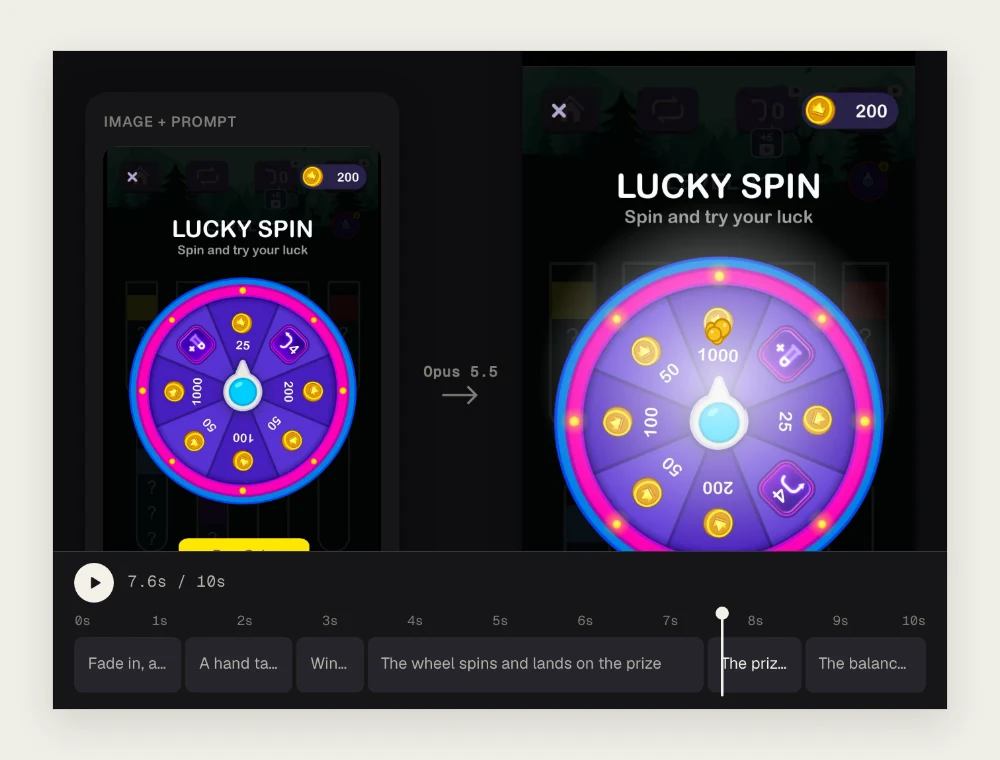
You can make motion graphics with Claude by uploading a screenshot and describing what should happen in it. In Tellcut, the screenshot, brief, preview, and edits stay in one workspace. You work through the conversation and timeline while the tool handles the animation code and MP4 export.
Take the Lucky Spin example: a hand taps Free Spin, the wheel turns, it stops on 1000, and coins move into the balance. The starting image already contains the button, wheel, pointer, and counter. The brief tells Claude how those pieces should behave.
1. Choose an image with the parts you want to animate
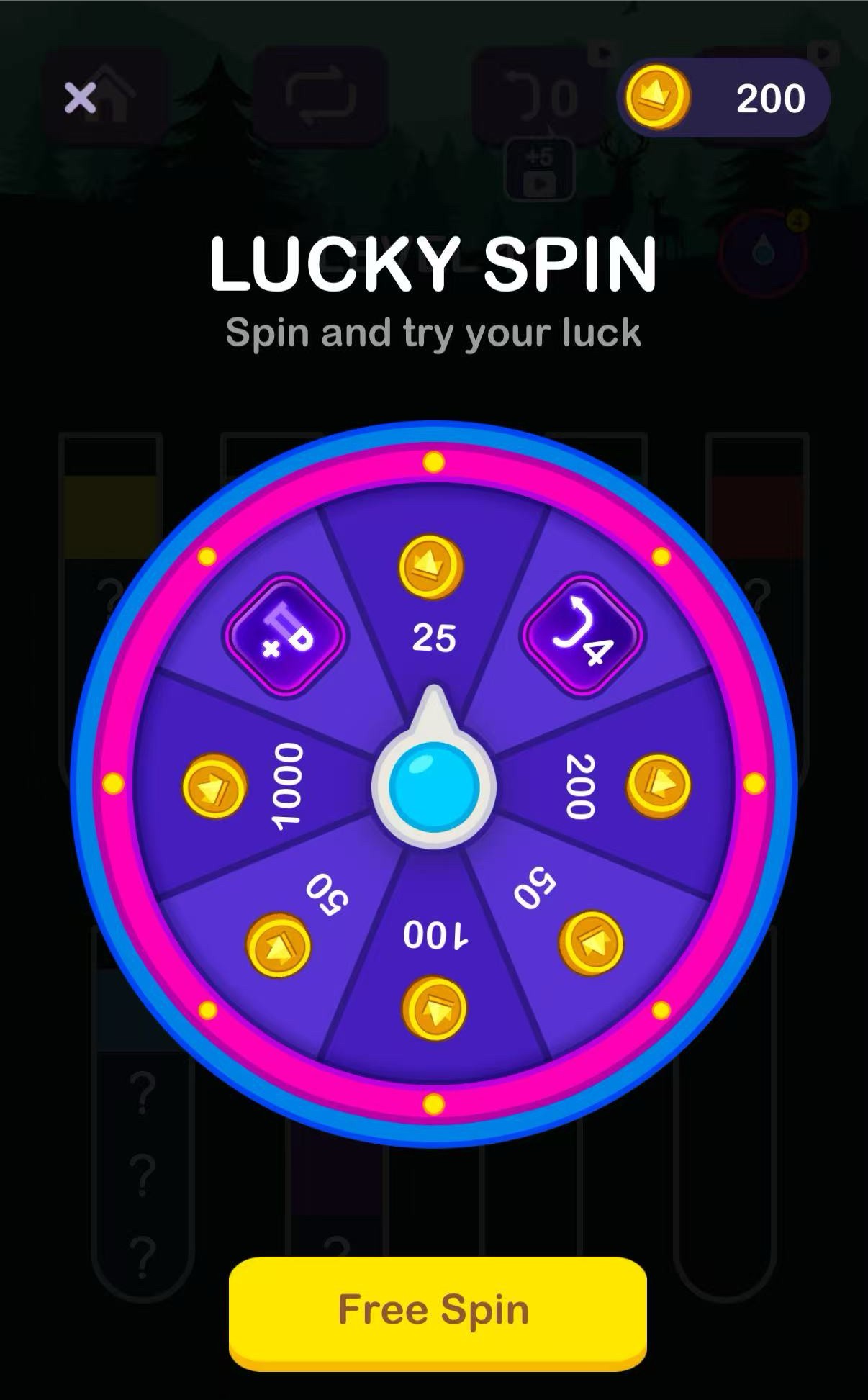
Use a clean screenshot with readable labels. Keep the full wheel, its pointer, the Free Spin button, and the balance in the frame. If one of those is cropped out, a request to animate it forces the model to fill in missing visual information.
Claude can process an image as visual input. Your instruction still needs to identify what matters in that image. “Animate this” leaves the action open; “tap Free Spin, turn the wheel, and stop on 1000” names objects and a sequence you can check.
For the Lucky Spin screenshot, write down the starting and ending states before generating:
| Element | Starting state | Intended result |
|---|---|---|
| Free Spin button | Visible near the bottom | A hand taps it before the spin |
| Wheel and pointer | Stationary | The wheel turns and stops with 1000 at the pointer |
| Balance | 200 | It reaches 1200 after a 1000 reward |
| Title and surrounding interface | Visible in the screenshot | They remain recognizable throughout |
You can download the sample screenshot to inspect those details. For your own app, remove private information first and use the clearest original capture you have. A small screenshot enlarged to fill the frame will also enlarge its blurry text.
2. Explore the example, then start your own video
Open the interactive example to see the screenshot, preview, and timeline together. Try a supplied change such as Land on 200 instead. The example runs its prepared edits without signing in; arbitrary instructions and your own uploaded images belong in a video of your own.
Choose Make your own video or open a new Studio draft. Creating a video and requesting AI edits require an account and a paid plan. Opening the draft lets you prepare the request before sending it.
Attach the screenshot with the image control. Wait until it finishes processing. If the attachment shows an error, retry that attachment before submitting a brief that depends on it.
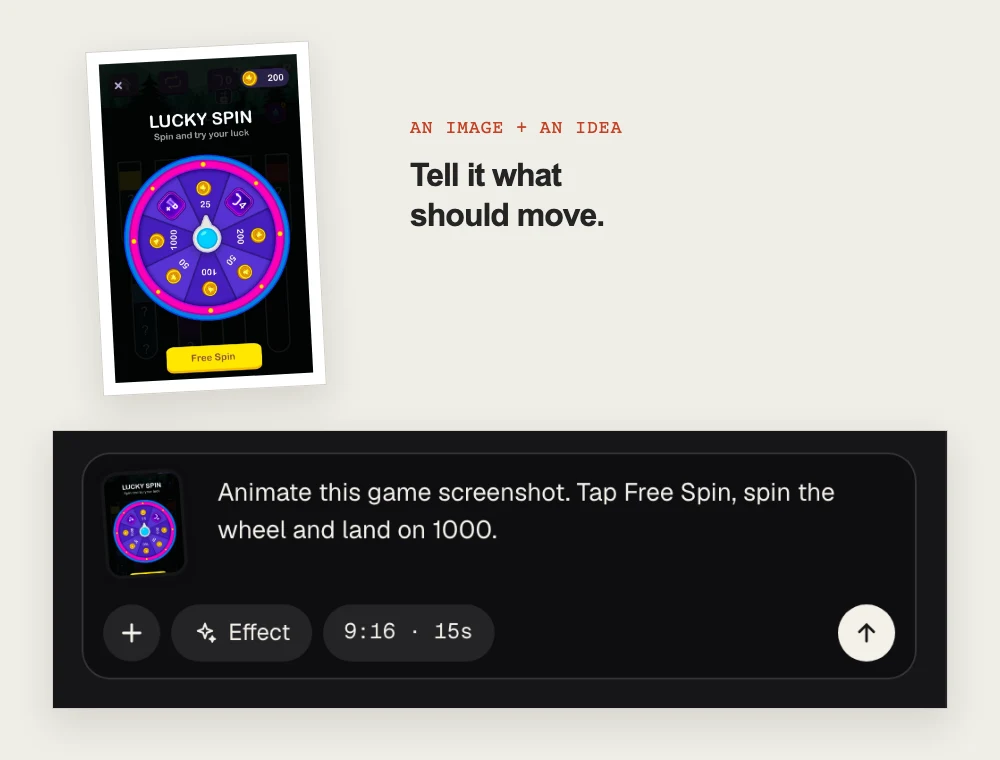 Attach the image and name the action. For the ten-second example here, change the length from the illustration’s 15s setting to 10s.
Set 9:16 and 10s in Video settings. The first uploaded image can change the initial format selection, so check the settings after uploading. The tall Lucky Spin image fits a vertical composition; keep the whole interface visible so the tap and reward stay connected.
For a landscape dashboard, start in 16:9 instead. Select the format for the final placement before generating. In an existing video, format and length are fixed; a different frame shape or duration starts with a new video.
3. Describe actions the screenshot can support
The short prompt for this example is:
Tap Free Spin, spin the wheel and land on 1000That works as a compact description because the screenshot supplies the objects. For a more controlled version, include the final balance and the parts that must stay unchanged:
Animate this Lucky Spin screenshot as a silent ten-second vertical video.
Keep the title, interface layout, wheel labels, pointer, and button text.

Show a hand tapping Free Spin, then spin the wheel and slow it down
until the 1000 segment lines up with the pointer. Show the 1000 reward,
then move coins into the balance and count it from 200 to 1200.
Keep the final balance visible at the end.
Clear output constraints and ordered instructions are useful when several events depend on one another. Coins should arrive after the wheel lands. The balance should reflect the prize that was shown.
Avoid adding an unseen bonus screen or another game mechanic to the first version. Finish the action contained in the image, inspect it, then decide whether it needs another scene.
If the screenshot is for a task app, the same approach becomes: click a visible button, move a named card, update a specific count, and hold the result. Use labels and values that are actually present. A broad request to “show how the app works” can introduce screens the image never supplied.
4. Review the sequence on the timeline
Send the brief. Tellcut shows Planning the shots and Turning the shots into code while it creates the video. Answer any clarification question with the missing detail, then wait for the preview. If the conversation shows a credits or account message, resolve that through its displayed controls.
The existing Lucky Spin example divides its ten seconds into these beats:
| Time | What happens | What to inspect |
|---|---|---|
| 0 to 1.2s | The screen appears and the title glints | The title and starting balance are readable |
| 1.2 to 2.4s | A hand taps Free Spin | The hand reaches the button before the wheel starts |
| 2.4 to 3s | The wheel winds up | The pointer remains in place |
| 3 to 7.6s | The wheel spins and lands | The 1000 segment ends at the pointer |
| 7.6 to 8.6s | The prize appears and coins burst | The prize matches the landing segment |
| 8.6 to 10s | The balance counts up | The total reaches 1200 and remains visible |
Play the entire clip first. Then use the timeline to pause around the tap, landing, and final balance. A spinning wheel can look convincing while stopping on a different number from the reward text. Those two details need to agree.
The timing table describes this example. A dashboard walkthrough needs its own sequence and enough time to read the control labels. For a broader explanation of how to divide a short animation into beats, use the Claude motion graphics tutorial.
5. Check the final state as carefully as the motion
At 9.8 seconds in the original clip, the wheel has stopped on 1000 and the balance reads 1200:
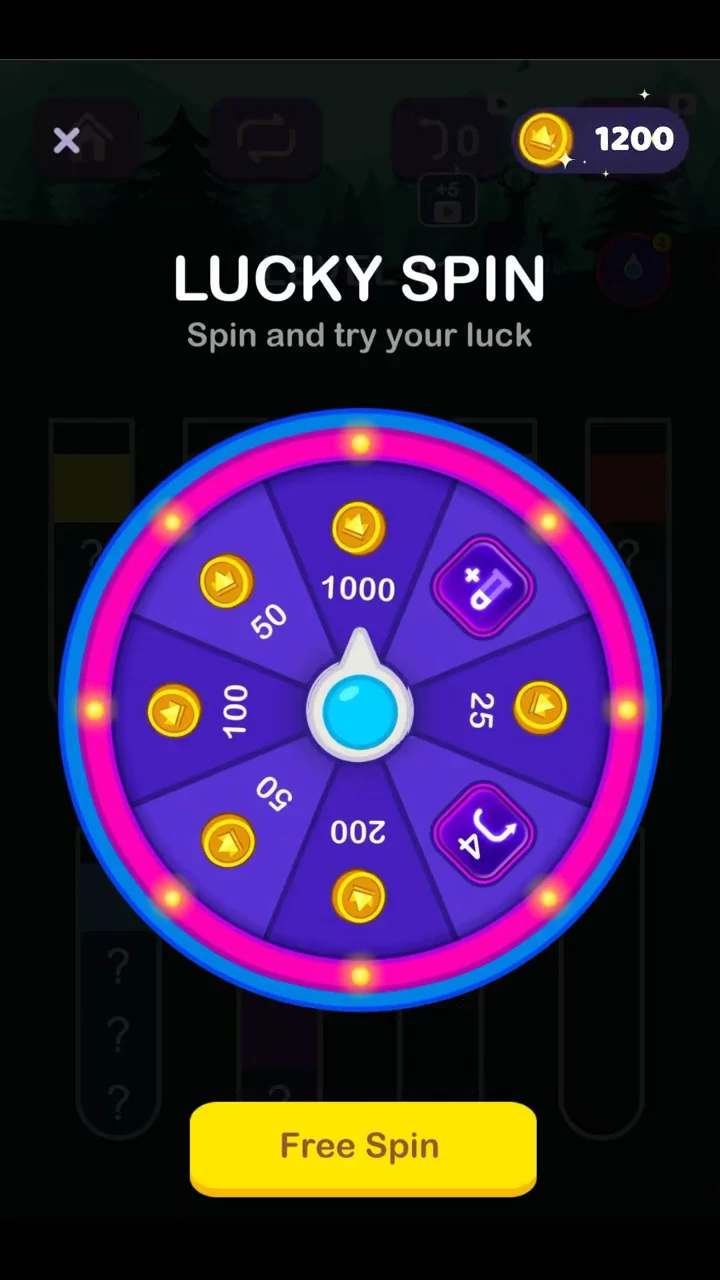
Check both the animated change and what remains afterward. If the wheel lands correctly but the balance stays at 200, the sequence is incomplete. If the balance reaches 1200 while the wheel points to 200, the result contradicts itself.
Look for changes to the surrounding interface too. A useful animation preserves the title, labels, and composition you intended to show. Extra decorations should not cover the counter or hide the pointer during the landing.
For a product walkthrough, replace the prize check with the equivalent visible state: a card in Done, the updated total, or the selected filter. Define that state in the brief so you can recognize it in the result.
6. Change a result without breaking its related details
The example’s Land on 200 instead edit changes the wheel’s stopping point, the reward text, and the final balance. Starting from 200, a 200 reward should leave 400.
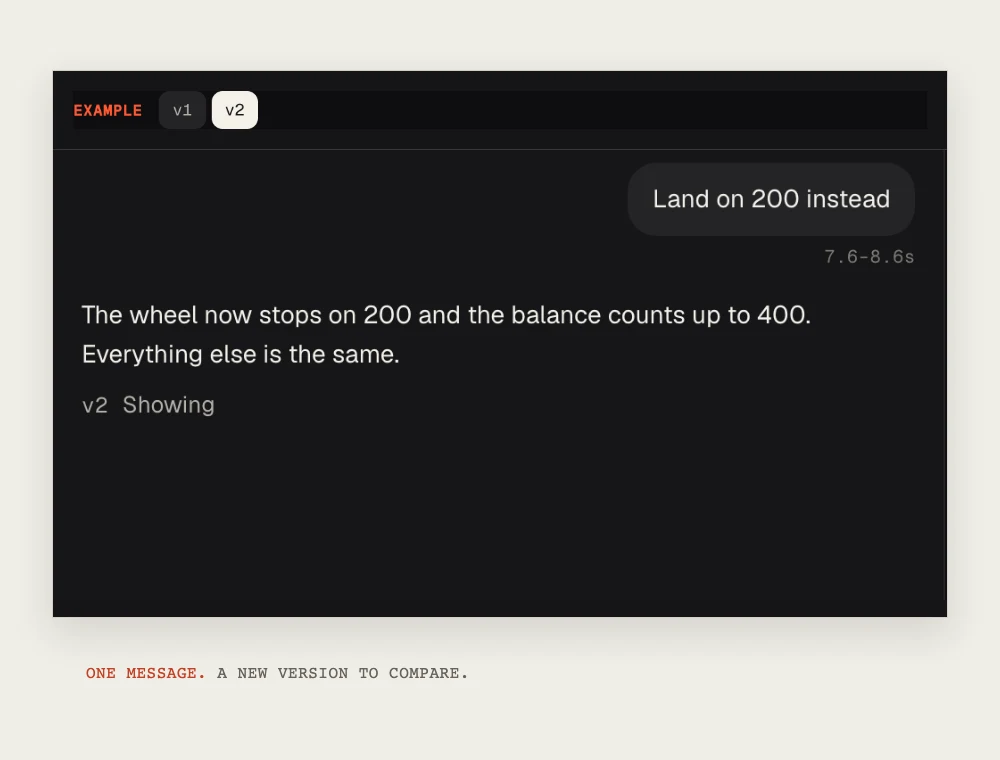 The supplied example edit connects the wheel’s result to the balance. Use the same level of precision in a video of your own.
In your project, request the whole related change:
Change the winning result to 200. Make the wheel stop on the 200 segment,
change the reward text to +200, and end the balance at 400 from its
starting value of 200. Preserve the title, button, interface layout,
and ten-second duration.
This change crosses the landing, prize, and balance beats. Select a range that includes all three, or send it as an edit to the whole video. Selecting only the prize-pop beat gives the instruction too narrow a scope for a balance update that happens afterward.
For a purely visual change, select the relevant beat and keep the request local:
Change only the prize reveal. Make the +200 text green with a dark
outline. Preserve the wheel's stopping point, the 400 final balance,
and every other scene.
Compare the available versions after the change. Inspect the interval you changed and the following beat. If a revision adds attractive coins but hides the final number, keep the earlier version and ask for a smaller correction.
When Text and colours is available for a generated video, use it for the fields it exposes. Changes to timing, composition, or relationships between several values belong in the conversation.
7. Export the video and inspect the file
Choose Export MP4 beneath the preview once you accept the result. Keep the page open while export runs, save the file, and play it outside Studio. Check the ten-second duration, vertical frame, tap, landing, reward, and final balance.
The exported animation is a video of the interface. It does not turn the screenshot into a working game or connect the counter to an app’s data. For an actual product demo, its purpose is to communicate the intended interaction accurately.
This workflow produces a silent video. If you add a sound effect, narration, or music in another editor, check the revised file after that edit. Keep the reward and balance readable even when the clip plays without audio.
Save the original screenshot and the accepted brief with the MP4. For another screen, replace the objects and values in the brief while keeping the sequence explicit. The screenshot-to-video page is another entry point when your image is ready.
Animate your own screenshot
Add an image, describe the action, and review a first version in Studio.