This video couldn’t be loaded.
Give a poster a moving title and a glowing finish
The Neon Tides artwork becomes a short event promo with glowing details, a title reveal and a pulsing Get Tickets button.
Made from your images
Give your posters, product images and app screens a sequence of their own. Describe the motion, then refine it with Claude.
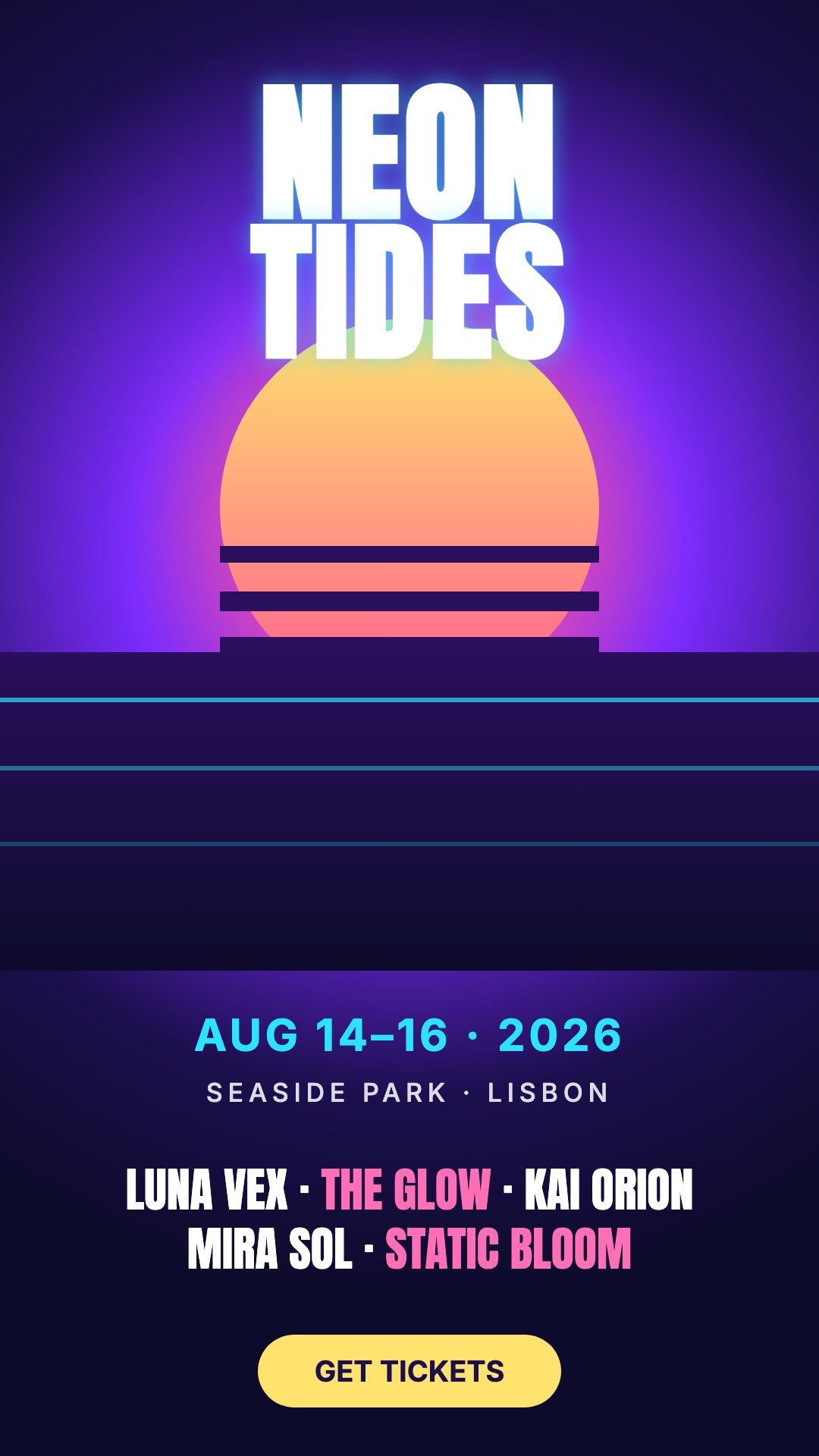
“Light up the title and pulse the Get Tickets button.”
From image to animation
Explore how an existing poster or interface can become a short video built around a reveal, a walkthrough or a game moment.
This video couldn’t be loaded.
The Neon Tides artwork becomes a short event promo with glowing details, a title reveal and a pulsing Get Tickets button.
Upload, direct, refine
Add a poster, product image, app screen or graphic in Studio. Use a clear source with enough detail for the framing you want. Add up to four images if your video needs several views.
Say what should move, what should stay still and how the video should end. Choose a duration and aspect ratio, then generate your first animation.
Play the preview, select a shot and ask for changes. Compare saved versions, then export a 1080p MP4 for your product page, social post or presentation.
Describe the sequence
Tell Tellcut what viewers should notice first, what should happen next and where the animation should finish. Try directions like these with your own image.
Guide the viewer toward a feature, a product detail or a key result with framing, movement and highlights.
“Start on the full image, then zoom toward the feature in the top right.”
Ask for a button pulse, a moving card or a spinning wheel. Keep the request grounded in the parts visible in your source image.
“Make the Get Tickets button pulse gently while the background stays still.”
Introduce a product, label a feature or finish with an offer. Specify the exact words to use as new text in the animation.
“Reveal ‘Your next launch starts here’ beside the image, then hold the final frame.”
Give each detail enough time to read. Direct the order of the reveals, the pace of the movement and the final hold.
“Reveal each feature one at a time and slow down the ending.”
Keep refining by chat
The Lucky Spin example starts with a 1000 prize and a final balance of 1200. “Land on 200 instead” changes those to 200 and 400, while keeping the opening, button tap and wind-up. Try the edit and switch between versions below.
Try a sample edit
One sentence changes where the wheel lands. Switch between the two versions to see the result.
“Land on 200 instead”
Original: the wheel lands on 1000 and the balance counts up to 1200.
Animate my own image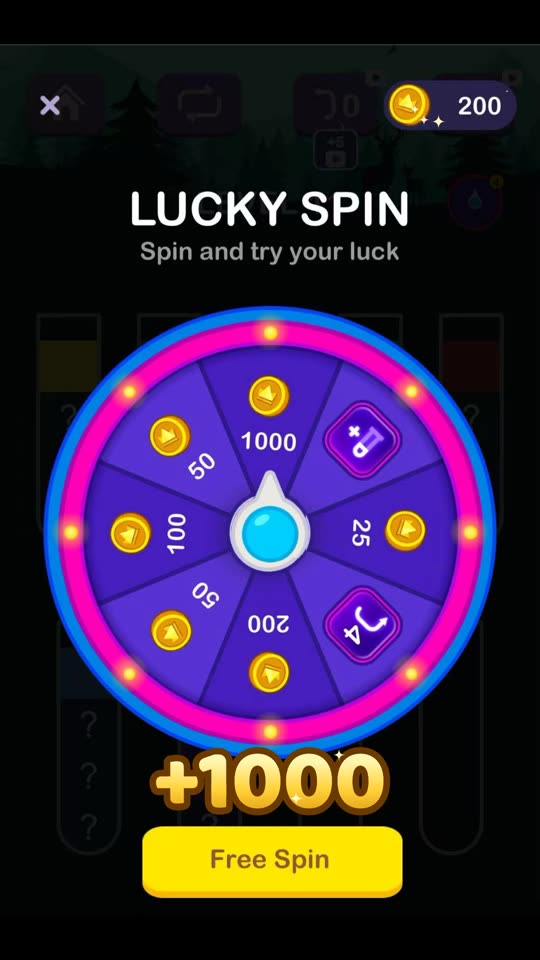 Loading preview…
Before you start
Image to motion graphics turns a still image into a designed animation with movement, text, highlights and transitions. In Tellcut, you upload an image and describe the sequence. Claude Opus 5.5 builds the animation, and you can refine it by chat before exporting a video.
Open Tellcut Studio and add your image. Explain what should move, the message you want to show and the final frame. Choose landscape, portrait or square and a video length, then generate a preview. Review the result, ask for changes and export an MP4.
You can upload PNG, JPG and WebP images. Posters, product images, app screenshots, logos and graphic layouts can provide a starting point. Use a clear source with readable details and enough space for the movement you describe. For interface walkthroughs, see screenshot to video.
Tellcut can add zooms, pans, highlights, text reveals, transitions and movement of visible elements. Examples include a poster with glowing details, a dashboard walkthrough or a game screen with a spinning wheel. It focuses on motion graphics and image-based animation; it does not generate realistic human actions or reconstruct hidden parts of a scene.
Yes. Name the element and describe its movement, such as making a button pulse or a wheel rotate. You can select a region in Studio to focus your request. The available motion depends on what is visible and can be separated from the source. Preview the result to check the edges and surrounding layout.
Tellcut uses your image as the visual source and builds the animation around it. Text embedded in the image stays part of that image rather than becoming editable type. Uploads may be resized or compressed, so review small text and image details in the final framing. Add new headlines or labels separately when you want to edit their wording by chat.
Yes. Add up to four images and explain their sequence and purpose. For example, introduce a product, move to a feature detail and finish on a result or offer. Include the image for each screen state or view that the animation needs, then check the crop in your chosen aspect ratio.
Yes. Ask for changes to timing, new text, colors, highlights or movement. Select a shot to focus a revision and compare saved versions before exporting. Learn more about Claude video editing in Tellcut.
You can explore the prepared Studio example and preview motion graphics templates before subscribing. Generating videos from your own images and requesting AI edits require a paid Tellcut plan and use plan credits. Visit pricing for current allowances and billing options.
Create 10-, 15- or 30-second videos in landscape 16:9, portrait 9:16 or square 1:1. Paid plans include 1080p MP4 exports without a watermark. Tellcut currently creates silent motion graphics; add music or voiceover to the exported video in another editor if needed.
Bring a still image. Shape the movement and message in Tellcut Studio.